Gnome Stamps Procreate: Digital Crafting Guide
Digital art has evolved rapidly, moving from complex vector software to intuitive, touch-based applications that allow creators to produce professional-grade work in minutes. Among the most charming and versatile tools available for iPad users are specialized brush sets designed to mimic traditional stamping techniques. Gnome Stamps Procreate represents a delightful intersection of whimsical illustration and efficient digital workflow. These hand-drawn digital stamp brushes are perfect for DIY projects, whether this be for continued digital crafting or for printed goods. By integrating these assets into your creative toolkit, you can streamline the design process while maintaining a unique, handcrafted aesthetic that stands out in a saturated market.
Understanding the Value of Digital Stamp Brushes
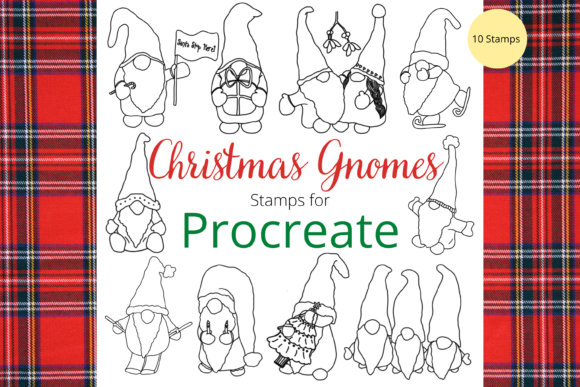
For many artists and small business owners, time is the most valuable resource. Drawing intricate characters or decorative elements from scratch for every project is not only tedious but can also lead to creative burnout. This is where pre-made digital stamps offer a significant advantage. The Gnome Stamps Procreate collection includes 20 individual digital brushes, each featuring a unique, hand-drawn element. Unlike static clipart images that must be imported and manipulated separately, these brushes function directly within the Procreate interface. This means you can "stamp" a gnome, a mushroom, or a forest element onto your canvas with a single tap, adjusting size and opacity on the fly.
The appeal lies in the balance between convenience and customization. While the base illustrations are pre-designed, they retain the organic feel of hand-drawn art. This avoids the sterile, repetitive look often associated with mass-produced digital assets. For beginners, this lowers the barrier to entry, allowing them to create complex scenes without advanced drawing skills. For professionals, it serves as a rapid prototyping tool or a way to add consistent branding elements across multiple designs.
Versatile Applications for Creators and Entrepreneurs
The utility of these brushes extends far beyond simple digital sketches. Because the output is high-resolution and scalable, the clip art elements can be used for greetings cards, scrapbooking, invitations, wall art, wrapping paper, print on demand, and much more. Here is how different users can leverage this pack:
- Small Business Owners: If you run an Etsy shop or a print-on-demand store, consistency is key. Using the same set of gnome characters across your product line creates a recognizable brand identity. You can quickly generate designs for mugs, t-shirts, and tote bags by combining different stamps from the pack.
- Event Planners and Hobbyists: Creating custom invitations for birthdays, baby showers, or holidays becomes effortless. Instead of searching for generic templates, you can build a unique layout in minutes, adding personal touches like names and dates alongside the whimsical gnome illustrations.
- Educators and Parents: These brushes are excellent for creating engaging educational materials. Teachers can design worksheets, reward charts, or classroom decorations that capture children’s attention. Parents can use them for homemade storybooks or activity sheets, fostering creativity in a fun, interactive way.
- Digital Scrapbookers: The layering capabilities of Procreate combined with these stamps allow for deep, textured digital scrapbook pages. You can adjust the color hue of each stamp to match your palette, ensuring a cohesive look without needing to draw each element manually.
Technical Requirements and Compatibility
Before purchasing or downloading any digital asset, it is crucial to understand the technical ecosystem required to use it effectively. These files are digital brushes that will only work within the Procreate App. To be able to use them you will need an Apple Pencil and the Procreate App installed on an iPad. This will not work without this specific hardware and software combination. Attempting to use these files on Android tablets, Windows computers, or other drawing apps will result in incompatibility errors.
The reliance on the Apple Pencil ensures precision when placing your stamps. While you can tap to place a stamp, using the pencil allows for finer control over pressure sensitivity if the brush settings support it, though most stamp brushes are designed for consistent opacity regardless of pressure. Ensure your iPad model supports the latest version of Procreate to avoid any performance issues when handling multiple layers and high-resolution brushes.
Installation and Workflow Tips
Installing custom brushes can seem daunting for first-time users, but the process is straightforward if you follow the correct steps. To download and install the files you will need a platform to download the files to, such as iCloud, Google Drive, or Dropbox. You will also need a program to be able to unzip the files, such as iZip or the built-in Files app on iOS.
- Download the File: After purchase, save the .zip file to your preferred cloud storage or directly to your iPad’s Files app.
- Unzip the Archive: Locate the downloaded file and tap to extract its contents. You should see a .procreatebrushset or individual .brush files inside.
- Import to Procreate: Open the Procreate app. Tap on the brush icon to open the Brush Library. Tap on any existing brush set name at the top left, then select "Import." Navigate to your unzipped files and select the brush set.
- Organize Your Library: Once imported, the files will appear in a named folder within your Brush Library. It is advisable to keep this folder distinct so you can easily locate your gnome stamps during future projects.
Once you have done this, the files will then be imported to Procreate within a named folder. This will be a Procreate file and will import automatically into Procreate once you have chosen this option. After installation, you can begin experimenting immediately.
Maximizing Creative Potential
The true power of Gnome Stamps Procreate lies in how you manipulate the elements after stamping. The brushes can be resized using the brush resize tool in Procreate, or by using the move and resize tool after the stamp has been placed. This flexibility allows you to create depth in your compositions. For example, you might place a large gnome in the foreground and smaller mushrooms in the background to simulate perspective.
Consider experimenting with blend modes. Changing a stamp’s layer mode from "Normal" to "Multiply" or "Overlay" can help it integrate more naturally with textured backgrounds. You can also adjust the hue, saturation, and brightness of each stamped element individually. This means a single green-hatted gnome can become red, blue, or purple to match your specific design needs, effectively doubling the versatility of the 20-brush pack.
Remember that digital crafting is iterative. Save your favorite combinations as separate layers or groups so you can reuse them in future projects. By building a library of go-to layouts using these gnome stamps, you significantly reduce the time spent on repetitive design tasks, allowing you to focus on the creative aspects that truly matter to your audience.