Transforming Digital Photos with an Acrylic Painting Photoshop Action: A Practical Guide
Digital photography offers unparalleled clarity, but there are times when the crispness of a high-resolution image feels too sterile for artistic expression. Many photographers and digital artists seek to bridge the gap between reality and traditional media, aiming for the textured, vibrant look of hand-painted canvas work. This is where an Acrylic Painting Photoshop Action becomes a valuable tool in your creative workflow. Rather than spending hours manually painting over a photograph, these automated scripts can simulate the thick impasto strokes, color blending, and organic imperfections characteristic of acrylics.
However, not all digital effects are created equal. Understanding how a dedicated action works, its limitations, and how it compares to manual techniques or other software solutions is essential for achieving professional results. This guide explores the utility of these tools, helping you decide if this approach fits your artistic needs.
Understanding the Mechanics of Digital Acrylic Simulation
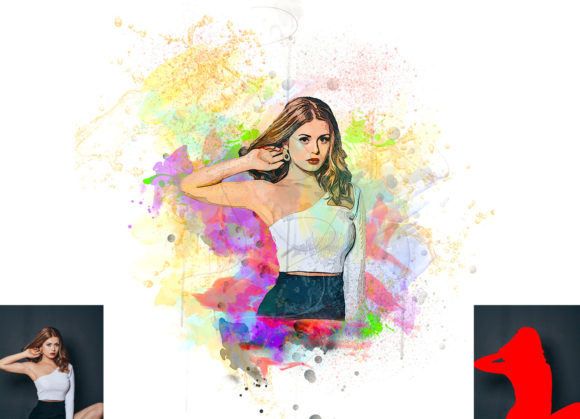
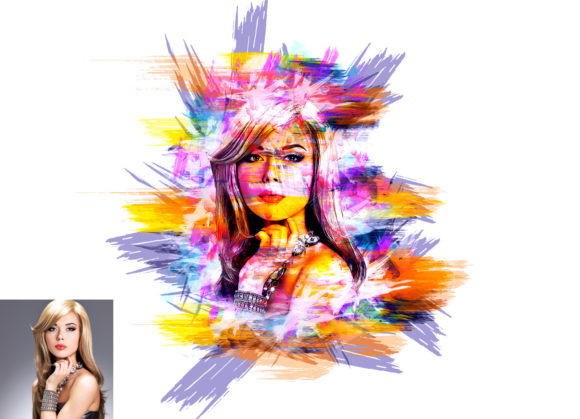
An Acrylic Painting Photoshop Action is essentially a recorded sequence of commands within Adobe Photoshop. When executed, it applies a complex series of filters, layer adjustments, and blending modes to transform a standard photograph. The goal is to mimic the physical properties of acrylic paint, such as viscosity, opacity, and the way colors mix on a palette rather than just on the screen.
What distinguishes a high-quality action from a basic filter is the level of customization and non-destructive editing it allows. Professional packs often include multiple color variations—typically around ten different options—that adjust the tonal range and saturation to suit different lighting conditions in your source photo. For instance, a portrait taken in warm sunlight may require a different color profile than a moody, low-light landscape. The ability to toggle these options via an "unviewed eye" layer structure ensures that you can preview changes instantly without altering the original pixel data permanently.
The technical foundation of these actions relies heavily on brush dynamics. To achieve a realistic look, the action usually requires user input before execution. A common workflow involves creating a new layer, renaming it specifically (often as "paint" in lowercase), and using provided brushes to mask or highlight areas where the effect should be most prominent. This step is crucial because it tells the algorithm where to focus the texture, preventing the entire image from looking uniformly processed and artificial.
Comparing Automated Actions to Manual Digital Painting
When evaluating whether to use an Acrylic Painting Photoshop Action, it is helpful to compare it against the alternative: manual digital painting. Both approaches have distinct tradeoffs regarding time, skill requirement, and artistic control.
- Time Efficiency: The primary advantage of an action is speed. A process that might take ten to twenty hours of manual brushwork can be reduced to minutes. For professionals handling high volumes of client work, such as wedding photographers offering artistic prints, this efficiency is invaluable.
- Consistency vs. Uniqueness: Actions provide a consistent style across a series of images. If you are creating a cohesive portfolio or a book layout, this uniformity is beneficial. However, manual painting allows for unique, spontaneous decisions that an algorithm cannot replicate. Each stroke in a manual piece is intentional, whereas an action applies a generalized pattern based on pre-set rules.
- Skill Barrier: Manual digital painting requires a deep understanding of light, shadow, color theory, and brush mechanics. An action lowers this barrier, allowing photographers with limited painting experience to achieve a stylized look. However, mastering the input phase—such as selecting the right areas to paint on the "paint" layer—still requires a keen eye for composition.
For many users, the ideal approach is a hybrid model. Using an action to establish the base texture and color harmony, then manually refining details with a tablet, offers the best of both worlds. This method leverages the speed of automation while retaining the personal touch of human artistry.
Evaluating Compatibility and Technical Requirements
Before investing time in learning a new tool, verifying technical compatibility is essential. Most professional Acrylic Painting Photoshop Actions are designed to work within specific ecosystems. For example, many robust packs are tested and optimized for English versions of Photoshop, ranging from CS5.5 up to the latest CC releases like CC2020 and beyond. It is critical to ensure your software version matches the action’s requirements, as newer Photoshop updates sometimes change how scripts interact with layers and filters.
Image resolution also plays a significant role in the final output quality. These actions typically perform best with high-resolution files, often recommending dimensions around 2000x3000 pixels or 3000x2000 pixels at 72 DPI. Using low-resolution images may result in pixelated textures or blurred details, undermining the realistic acrylic effect. Conversely, extremely large files may slow down processing time, depending on your computer’s hardware capabilities.
The inclusion of supplementary files, such as custom brushes and PDF help guides, further enhances the user experience. Custom brushes are often tailored to mimic specific bristle types, allowing for more nuanced input during the preparation phase. A comprehensive help file can clarify installation steps and troubleshooting tips, which is particularly useful for users who are new to working with .ATN files.
Identifying the Best Use Cases
While versatile, an Acrylic Painting Photoshop Action is not a one-size-fits-all solution. Certain subjects and styles benefit more from this treatment than others.
Ideal Subjects for Acrylic Effects
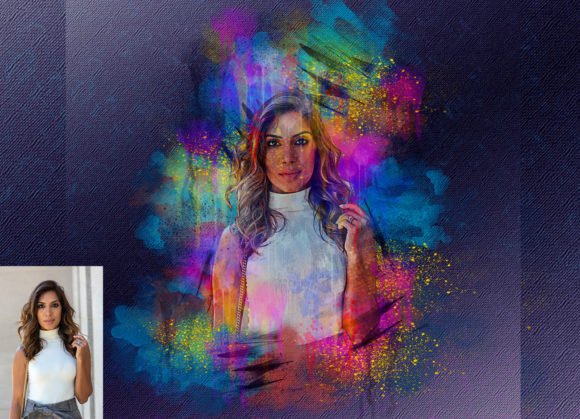
- Portraits: The soft blending capabilities of acrylic simulations can flatter skin tones, smoothing out minor imperfections while adding artistic depth. The texture adds a timeless, classical feel to headshots.
- Landscapes and Nature: Trees, clouds, and water features translate well into painted styles. The organic irregularities of nature complement the brushstroke textures, creating a harmonious blend between photo and paint.
- Street Photography: Applying an acrylic effect can abstract busy urban scenes, focusing the viewer’s attention on shapes, colors, and mood rather than specific details like license plates or signage.
When to Consider Alternatives
There are scenarios where this tool may not be the best choice. Images requiring extreme precision, such as architectural photography or product shots for e-commerce, generally suffer from the distortion and texture overlay of painting effects. In these cases, maintaining sharp lines and accurate color representation is paramount, and an artistic filter would detract from the image’s purpose.
Additionally, if your goal is to create a completely original piece of art rather than a stylized photograph, starting with a blank canvas and painting manually—or using advanced generative AI tools designed for creation rather than transformation—might be more appropriate. Actions are best viewed as enhancement tools for existing photography, not replacements for original illustration.
Making an Informed Decision
Choosing to integrate an Acrylic Painting Photoshop Action into your workflow depends on your specific goals, technical comfort level, and the nature of your projects. If you value efficiency and want to offer clients a unique, artistic product without years of painting training, this tool is highly effective. The non-destructive nature of modern actions ensures that you can always revert to the original photo, allowing for risk-free experimentation.
However, success relies on proper execution. Taking the time to learn the preparation steps—such as correctly naming layers and using the provided brushes—is crucial. Rushing through the setup often leads to generic-looking results. By treating the action as a starting point rather than a final solution, you can customize colors, adjust opacity, and refine masks to create images that feel truly extraordinary.
Ultimately, the value of this resource lies in its ability to democratize artistic styles. It allows photographers to explore the aesthetic of traditional media without the mess, cost, or time commitment of physical paints. Whether you are looking to refresh your portfolio, create unique gifts, or simply experiment with new visual languages, understanding the capabilities and limitations of these actions will help you achieve high-quality, professional results.